Using Structured Data in Brim
Brim is designed to work with unstructured notes (like clinical narratives), and convert it to structured data using rules you define.
However sometimes you want to compare structured data (like lab values or medication lists) with the outputs from your notes. This article shows you how to bring in the data you already have in a structured format and evaluate it side-by-side with abstracted data from notes.
Here's a Quick Walkthrough, with more detail below:
Uploading Structured Data into Brim
There are two ways to upload structured data into Brim:
1) Upload structured data via a CSV.
- This is great for one-time projects.
2) Upload structured data with Brim's API.
- This works best for ongoing workflows.
1) Manual Upload of Structured Data
- Click the "Add Data" button under "Project Data" in Project Setup.
- Click "Structured Data"
- Here you can see the required format for Structured Data under "See example format" and download an example file if you choose.
- Click "Choose File". Select a CSV file on your computer that is formatted for structured data.
- Click "Upload"
2) Upload Structured Data with the Brim API
- Click the "Add Data" button under "Project Data" in Project Setup.
- Click "Add Data via Brim API". This will connect you to the most up to date documentation on how to use the Brim API.
CSV Format for Structured Data in Brim
Below is the format of the CSV required to upload structured data into Brim. You can also find this in the tool under Project Setup > Add Data > Structured Data > See example format and download an example file there.
The CSV should have one value per row, and must include the fields below in the CSV header (in any order).
Each row must have a unique combination of NAME, PATIENT_ID, and NOTE_ID.
| Field Name | Field description | Notes |
|---|---|---|
| NAME | The name of the variable/data point. | If there is no existing structured data element with this name, it will be created. |
| SCOPE | The scope of the variable. | Must be one of: "Many Labels Per Note", "One Label Per Note", or "One Label Per Patient". |
| TYPE | The data type of the variable. | Must be one of: "integer", "float", "text", "timestamp", or "boolean". |
| PATIENT_ID | Alphanumeric identifier for the patient. |
|
| NOTE_ID | Alphanumeric identifier for the note. | Only needed for "One Label Per Note" and "Many Labels Per Note" variables. |
| NOTE_DATETIME | (Optional) The date/time for the note. Format must be: "YYYY-MM-DD" or "YYYY-MM-DD HH:MM:SS" | Used to set the document date when a new document is created. |
| VALUE | The value for this combination of variable name, patient ID, and note ID. |
|
Example Per- Patient: NAME,SCOPE,TYPE,PATIENT_ID,NOTE_ID,NOTE_DATETIME,VALUE
age,One Label Per Patient,integer,12345,,,56
Example Per Note:NAME,SCOPE,TYPE,PATIENT_ID,NOTE_ID,NOTE_DATETIME,VALUE
diagnosis,One Label Per Note,text,12345,N001,2024-01-15,Diabetes
Important Notes:
Escape double quotation marks with double quotation marks (i.e., " becomes "").
Managing Structured Data Variables
Structured data fields are created as variables in Brim, with a name, scope and type. They can also be organized and ordered into Instruments if you prefer.
You can find your Structured Data Variables under Project Setup > Variables > "Structured Data". Here you can:
- Delete a structured data variable, which also deletes all of its values.
- Edit a structured data variable. Just click "Edit", and you'll be able to edit the name of your structured data variable or assign it to an Instrument.
Using Structured Data in Other Variables
You can use structured data values to direct the logic of abstraction or even whether abstracted variables get generated. To do this:
- Go to Project Setup > Variables > Edit for the Variable you want to modify.
- Scroll down to the "References" section, and click "Input Variables".
- Find the structured variable you want to reference.
- Once you've added it, you can now reference it in the variable instructions.
- You can also now use it to define the conditions under which to generate this variable.
Note: Whether a structured data variable is eligible for conditional generation depends on its scope relative to the variable you're editing.
- If the variable scope is One Per Patient, it can only generate based on the value of other One Per Patient variables.
- If the variable scope is One Per Note or Many Per Note, it can only generate based on the value of One Per Patient or One Per Note variables.
To add a condition for generation:
- Click "Add Condition +"
- Click the first dropdown, select your structured variable
- Proceed to the other dropdowns to define the conditions under which this variable should generate.
- Click "Save Variable" when you're done.
Structured Data in Label Review and Export
Structured data values will appear in Label Review alongside abstracted variables. This is meant to give you a full view of your dataset and patients. You can easily filter out the structured data with the "Show Structured Data Variables" checkbox at the top of label tables.
Structured data values will also be exported alongside your other data. You can prevent this by going to Export > Advanced Settings and unchecking "Include Structured Data Values".
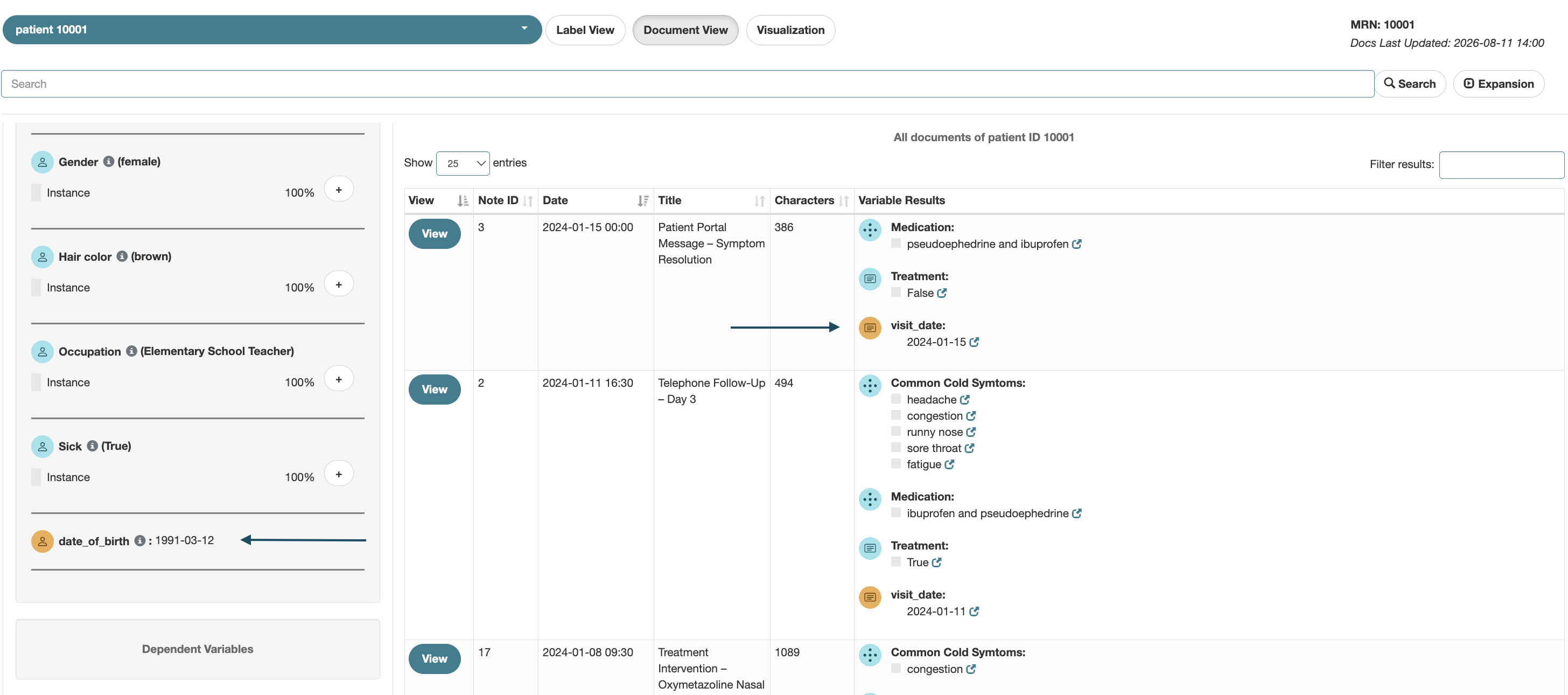
Structured Data in Document View
Structured data values will appear in Label Review- Document View alongside abstracted variables. You will see Structured Data field indicated with an orange icon.