
Conditional Generation for Variables
Conditional Variable Generation lets you generate a variable value only when it’s truly needed. This feature reduces unnecessary compute, speeds up project runs, and gives you more precise control over how your variable library behaves.
Use it when certain variables only matter in specific clinical contexts, such as when a note is from a particular date range, contains a meaningful title, or when another variable has already signaled that it’s relevant.
Why Use Conditional Generation?
Conditional generation offers two major benefits:
1. Save Compute Cost
Each variable value run consumes tokens. If a variable is irrelevant for a large portion of your notes (e.g., oncology-specific questions run on primary care notes), conditional generation prevents Brim from generating that variable unnecessarily.
2. Save Time
By skipping unneeded LLM calls, your projects can finish faster. This is especially helpful for high-volume datasets.
Where do I find Conditional Generation?
You can find conditional generation in the "References" section of your Edit Variable screen in Project Setup.
Generation Conditions Based on Note Date
You can instruct Brim only to generate for documents with a certain date.
- Go to Conditional Generation and select "Note Date" as your leading value.
- Select your operator. Your options are:
- is on date
- is NOT on date
- is before
- is after
- is before or on
- is after or on
- is empty
- is NOT empty
- is in list
- is NOT in list
- is within
- is NOT within
- (for some operators) Choose what you want to compare to. This can be:
- a static date that you type in or choose with the date picker
- the value of an Input Variable
- For is in list & is NOT in list: a comma-separated list of static dates in YYYY-MM-DD format.
- For is within & is NOT within: a value, the + or - operator, and the number of days you want the value to be within.
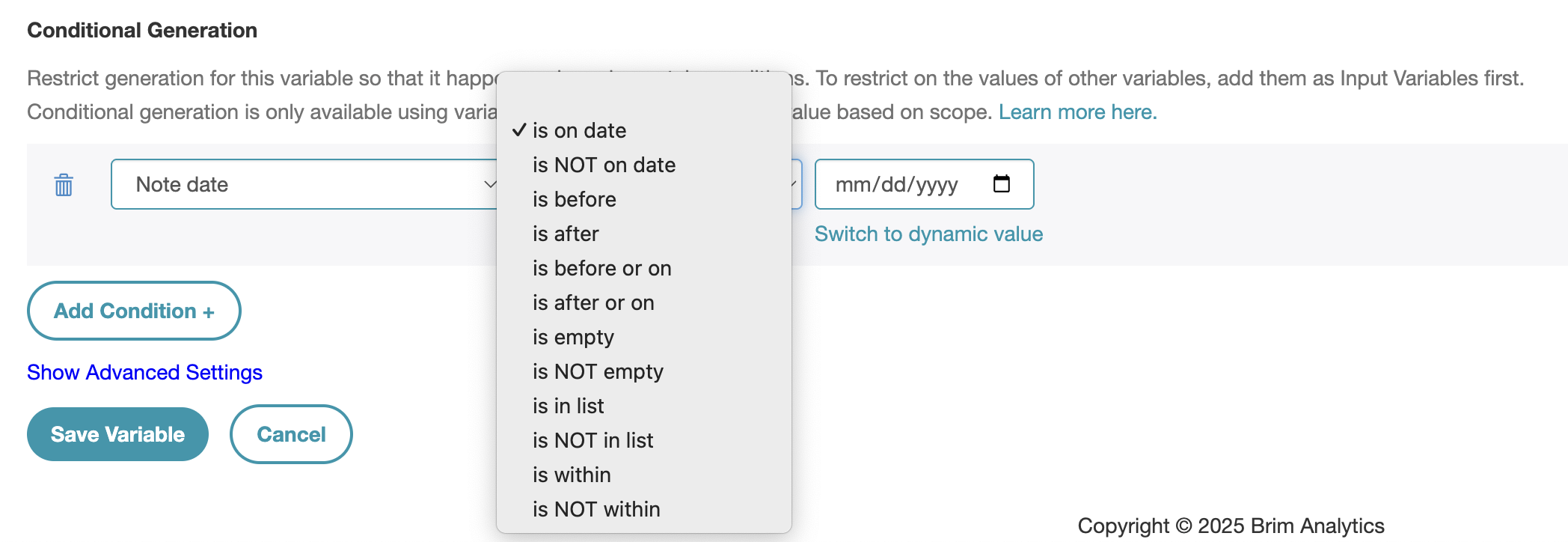
Example:
Generate “Treatment Intent” only for notes dated after diagnosis.
Generation Conditions Based on Note Title
You can instruct Brim only to generate for documents with certain note titles.
- Go to Conditional Generation and select "Note title" as your leading value.
- Select your operator. Your options are:
- is equal to
- is NOT equal to
- is empty
- is NOT empty
- contains value
- does NOT contain value
- is in list
- is NOT in list
- (for some operators) Choose what you want to compare to. This can be:
- static text that you type in
- the value of an Input Variable
- For is in list & is NOT in list: a comma-separated list of text strings.
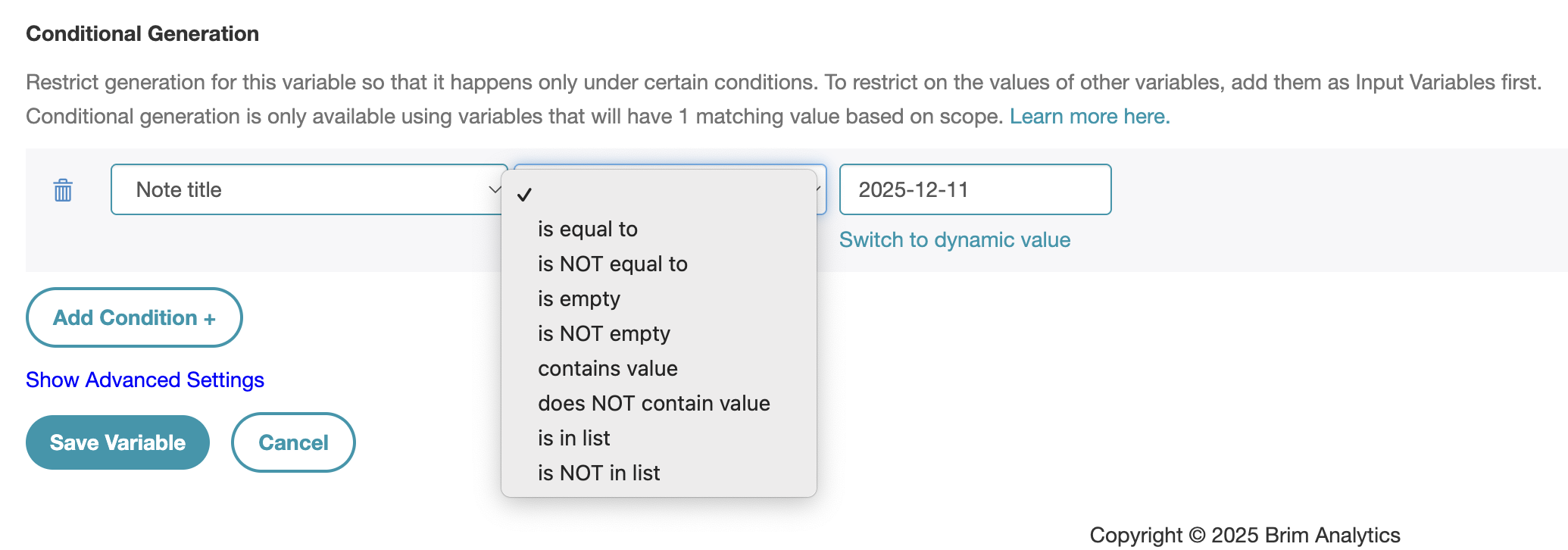
Generation Conditions Based on the Value of Another Variable
Scope Restrictions
Brim can only do conditional generation for a variable value if there's one clear value to reference for that value. Practically this means:
- "Many Labels Per Note" variables cannot be used for conditional generation for any variable because it's ambiguous which variable value to use.
- "One Label Per Note" variables function as a document filter rather than a patient filter for One Per Patient variables.
The full list of scope restrictions is below.
| Scope of Main Variable | Condition on Many per Note Variable | Condition on One per Note Variable | Condition on One per Patient Variable |
| Many per Note | NO |
YES (uses the value for that note) |
YES (uses the value for that patient) |
| One per Note | NO |
YES (uses the value for that note) |
YES (uses the value for that patient) |
| One per Patient | NO |
YES (functions as a filter on documents before aggregation) |
YES (uses the value for that patient) |
How to Build a Generation Condition based on the Value of another Variable
Use the result of one variable to determine whether this variable should run or be skipped.
Examples:
- Only generate “Metastasis Site” if “Evidence of Cancer” = True.
- Only generate “NICU Discharge Readiness Criteria” if “Encounter Type” = NICU.
This is the most powerful way to focus compute where it matters.
- Go to Input Variables and add all variables you want to use for conditional generation to your list of Input Variables.
- Go to Conditional Generation
- Select the variable you want to use as your leading value.
- Select your operator. Your options depend on the data type of your leading variable.
- is empty
- is NOT empty
- is default value
- is NOT default value
- is in list
- is NOT in list
- is equal to (text, integer, float, boolean)
- is NOT equal to (text, integer, float, boolean)
- contains value (text)
- does NOT contain value (text)
- is on date (timestamp)
- is NOT on date (timestamp)
- is before (timestamp)
- is after (timestamp)
- is before or on (timestamp)
- is after or on (timestamp)
- is within (timestamp, int, float)
- is NOT within (timestamp, int, float)
- is less than (int, float)
- is greater than (int, float)
- is less than or equal to (int, float)
- is greater than or equal to (int, float)
- (for some operators) Choose what you want to compare to. This can be:
- static text that you type in
- the value of another input variable
- For is in list & is NOT in list: a comma-separated list of values
- For is within & is NOT within: a value, the + or - operator, and the interval that should be used for "within".
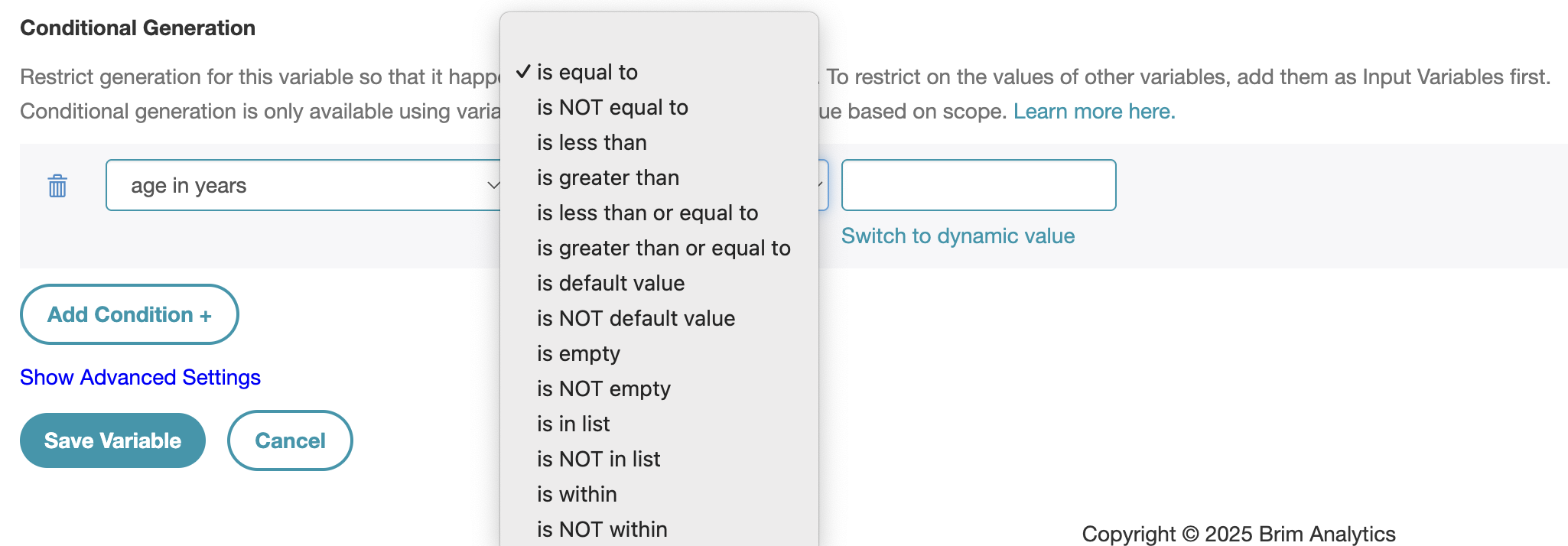
Combining Conditions: AND / OR
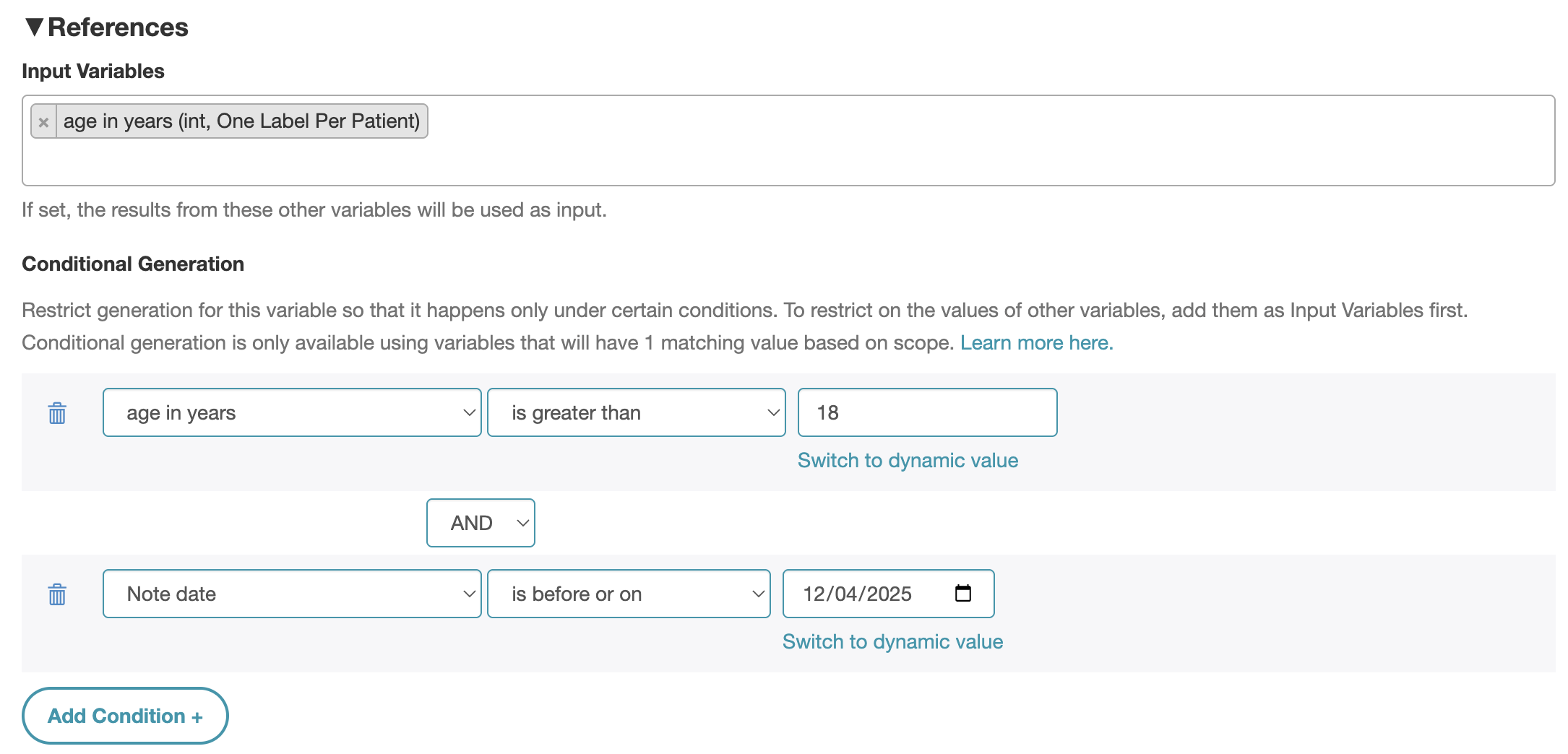
You can create complex logic by adding multiple conditions:
- Click "Add Condition+"
- Configure your new condition.
- Choose whether to combine your conditions using AND or OR.
- You can only use one across all of your conditions if you have more than 2 total.
Conditional Generation in Label Generation and Review
Brim has placeholders for values skipped due to conditional generation, and these placeholders are hidden by default. If there are placeholder values Excluded by Conditions that are being filtered out by a table, you'll see a banner at the top of the table:

The signpost icon next to the variable name indicates that it has generation conditions.
You can toggle the visibility of values that are Excluded by Conditions in Filters > Visibility > Show Condition-Excluded Labels.
When Condition-Excluded Labels are shown, you can click the Reasoning icon to see why they were not generated. You can also click to see all inputs or view the variable hierarchy.
