
How to Use Brim's Variable History
The Variable History feature in Brim lets you track changes to a variable over time and revert to previous versions when needed. This makes it easy to experiment, collaborate, and modify variables with confidence.
Why Variable History Matters
As you refine your variables, definitions may evolve, whether you're improving logic, updating instructions, or troubleshooting unexpected results.
Variable History helps you:
- Understand what changed and when
- Compare different versions of a variable
- Safely revert to a previous version if something breaks
How to Access Variable History
- Navigate to your Brim Dashboard
- Go to Project Setup
- Find the variable you want to review and click Edit
- In the top right corner, under Actions, click Show History
Understanding the History View
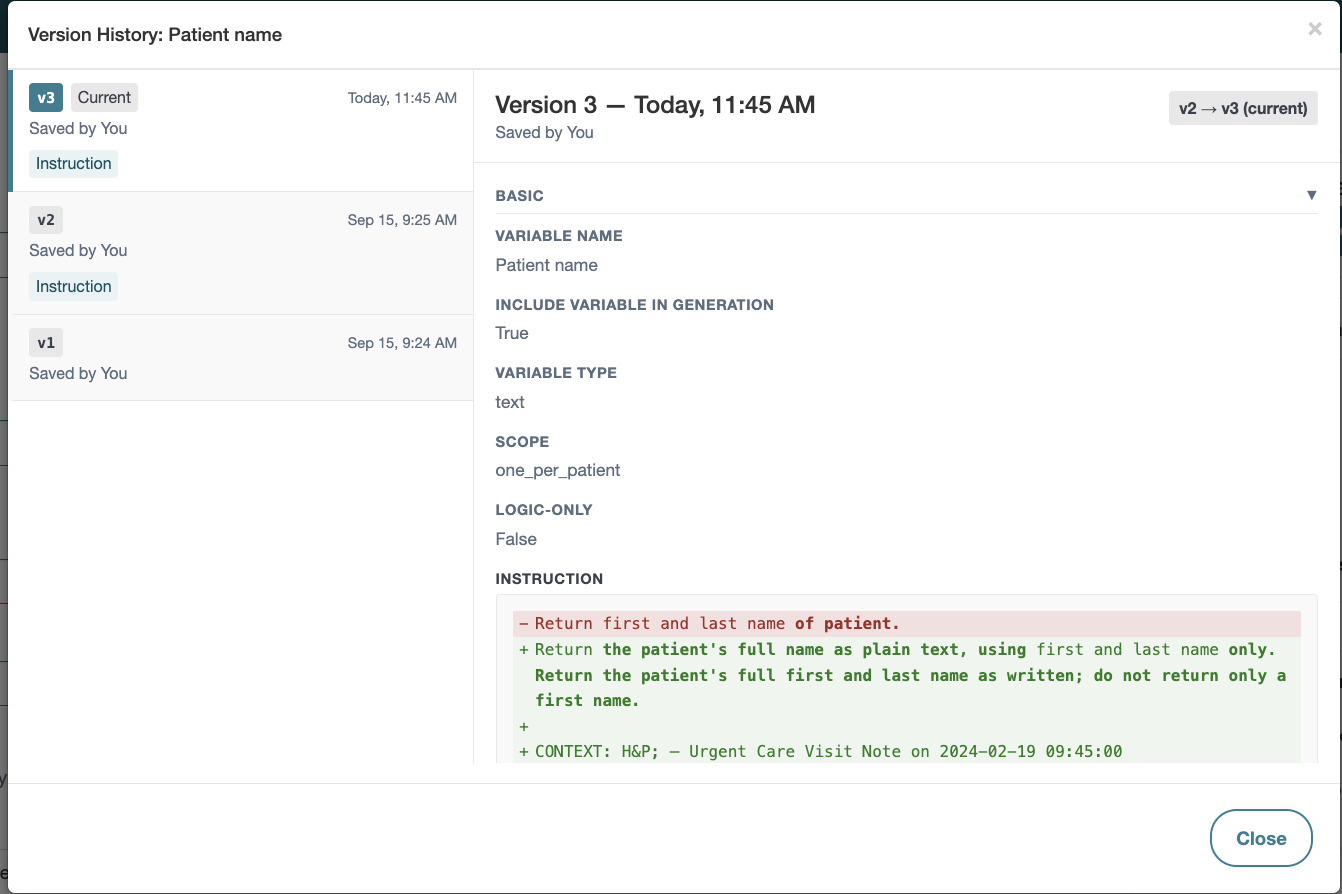
Once you open Variable History, you’ll see two main panels:
Left Panel: Version List
- Displays all saved versions of the variable
- Each version includes:
- Version number
- Timestamp
- Summary of changes
Right Panel: Change Details
- Shows exactly what changed in the selected version
- Items that have been removed appear in red and items that have been added appear in green.
- By default, only modified sections are expanded
- You can expand or collapse sections to explore further
To inspect a specific version, simply click it in the left panel.
Reverting to a Previous Version
If you want to roll back changes:
- Select the version you want to revert to from the left panel
- Click Revert at the bottom of the screen
- Confirm your selection
Brim will create a new latest version based on the version you selected. This means:
- Your history is preserved
- You can always revert again if needed